Solutions Testing
The Solution Hub has integrated support for the Orchestra testing feature. Each solution created in the Solution Hub can be tested by executing all test cases contained in the scenario.
Configuration
To enable testing support, a test runner must be installed alongside the back-end.
The configuration details for starting the test runner are located in:
config/environment_settings.xml
Configuration Parameters
| Name | Description |
|---|---|
commandLine | Defines the command line used to start the Orchestra test runner. |
timeout | Defines how long a test execution may run before being marked as failed. |
cache.size | Defines how many test executions are cached. Older ones will be overwritten. |
logSize | Defines the size of the log captured during a test run. |
If the test runner's log output should also appear in the Solution Hub log, modify the logging.properties of the test runner to include a ConsoleHandler.
# "handlers" specifies a comma separated list of log Handler
# classes. These handlers will be installed during VM startup.
# By default, only a ConsoleHandler is configured.
# DelegateStreamHandler can be used to get logging in a container

handlers= java.util.logging.ConsoleHandler
Usage
Once the test runner is configured, follow these steps to execute a test:
-
Select the relevant solution.
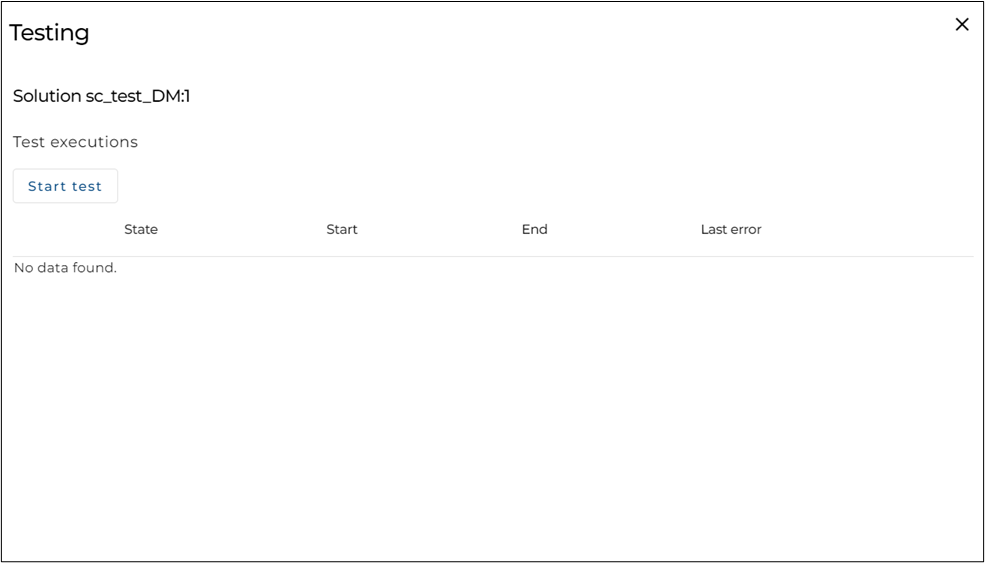
Click on the test icon. The testing dialog will appear.
-
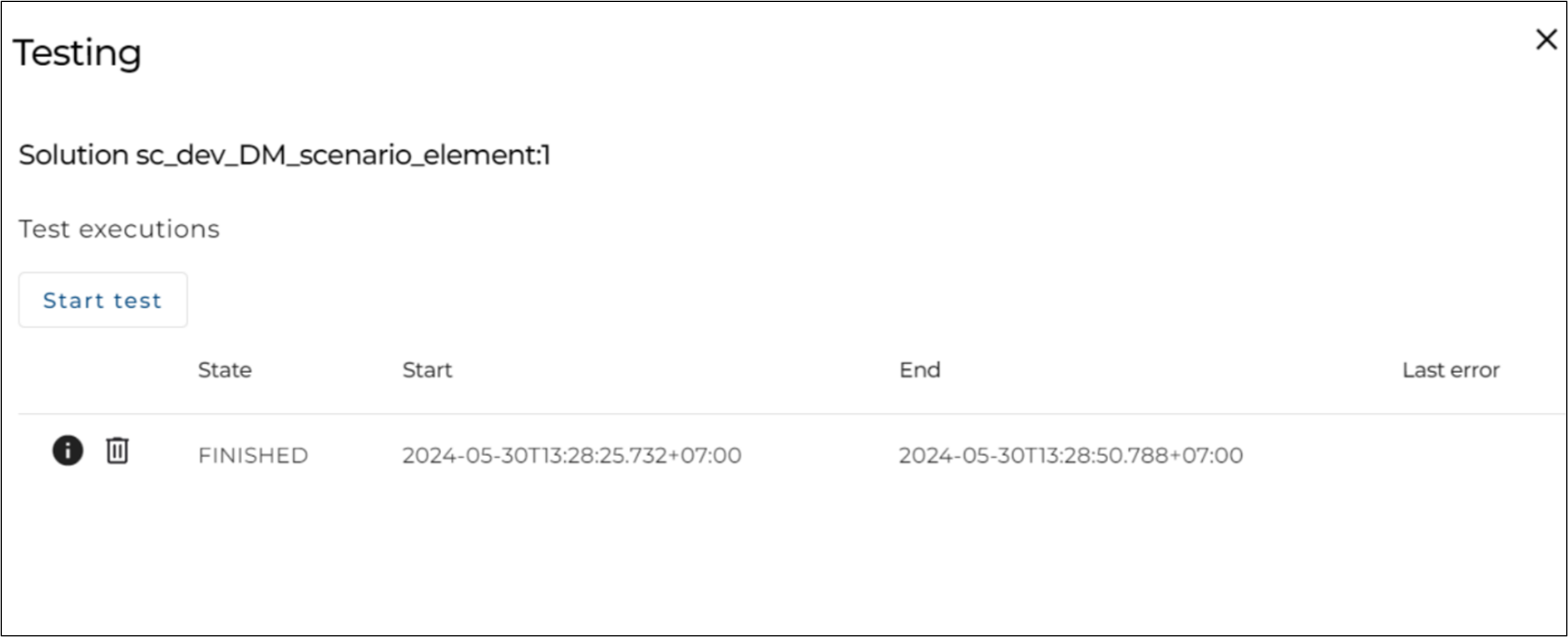
Click "Start test".
The panel will refresh continuously until the status shows "finished".
-
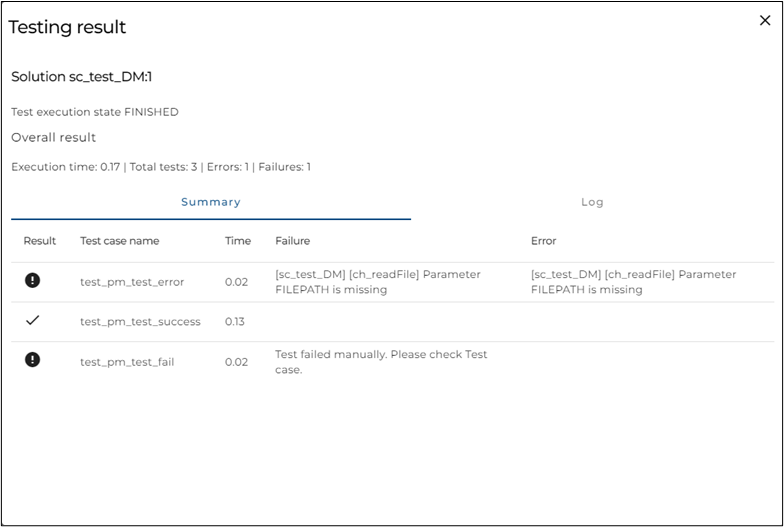
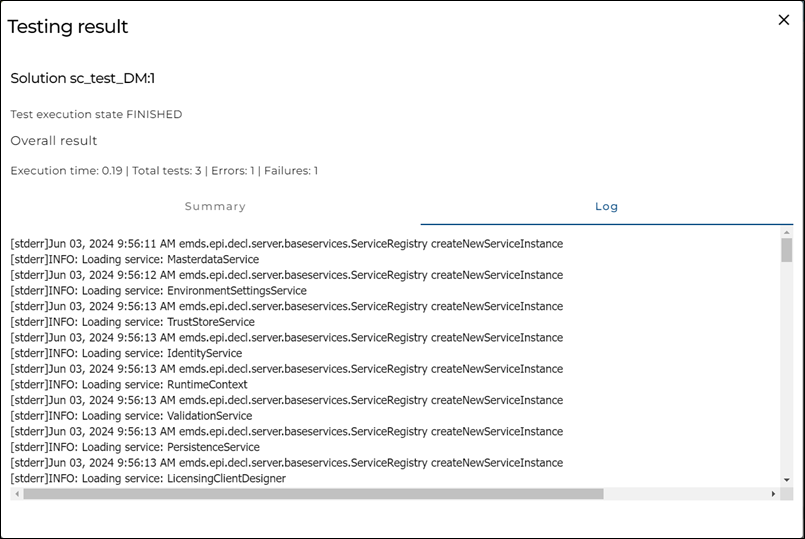
Click the 'i' icon to view test results.
You can view:- Summary tab — for test case overview
- Log tab — for log output
- Summary tab — for test case overview